Existuje šest různých způsobů, jak na iPhonu zablokovat aplikaci, a všechny už v telefonu máš. Tady je, jak každý z nich funguje, v pořadí, v jakém je většina lidí potřebuje — a jedna věc, kterou mají společnou a která rozhoduje o tom, jestli blok vydrží déle než do úterý.
Všechno níže je součástí iOS. Nic z toho nevyžaduje účet, předplatné ani stahování. Cesty v nastavení odpovídají iOS 26; ve starších verzích jsou názvy podobné, jen menu leží o úroveň hlouběji.
1. Limity pro aplikace: denní příděl na aplikaci
Tohle má většina lidí na mysli, když řekne „zablokovat aplikaci“. Dáš aplikaci denní příděl času, a jakmile ho vyčerpáš, aplikace se přestane otvírat.
- Otevři Nastavení → Čas u obrazovky.
- Klepni na Aktivita v aplikacích a na webových stránkách a pak na Zapnout funkci Aktivita v aplikacích a na webových stránkách, pokud ještě zapnutá není. Bez toho v Času u obrazovky nic dalšího nefunguje.
- Klepni na Limity pro aplikace → Přidat limit.
- Vyber kategorii — Sociální sítě, Hry, Zábava — nebo klepni na název kategorie, rozbal ji a vyber jednotlivé aplikace.
- Klepni na Další, nastav dobu a případně Upravit dny, abys měl o víkendu víc.
Jedna věc, kterou je dobré vědět, než se na to spolehneš: Apple to píše napřímo ve vlastní dokumentaci — limity Času u obrazovky je standardně možné po vyčerpání ignorovat. Když se objeví obrazovka s limitem, objeví se s ní i cesta kolem něj.
2. Klidový čas: blokování aplikací podle rozvrhu
Klidový čas blokuje aplikace a jejich oznámení v určeném časovém okně, ne v rámci přídělu. Z těch dvou je silnější, protože ho nastavíš jednou v klidu a pak se spouští sám.
- Nastavení → Čas u obrazovky → Klidový čas.
- Klepni na Zapnout klidový čas do zítřka, pokud jde o jednorázovku, nebo na Podle rozvrhu, pokud jde o opakované okno.
- Vyber Každý den nebo Přizpůsobit dny a pak nastav počáteční a koncový čas.
- Zapni V klidovém čase zablokovat. Bez toho jsou blokované aplikace jen ztlumené a můžeš je používat dál; s tím se nedají otevřít vůbec.
- Přes Povoleno vždy si nech po celou dobu dostupný Telefon, Zprávy nebo konkrétní kontakty.
V klidovém čase zablokovat vyžaduje přístupový kód Času u obrazovky (Nastavení → Čas u obrazovky → Zamknout nastavení času u obrazovky). Právě ten kód mění návrh v blok — s jednou výhradou, o které je řeč níž.
3. Zamkni nebo skryj aplikaci za Face ID
Podrž prst na ikoně aplikace na ploše, dokud se neotevře nabídka, a pak klepni na Požadovat Face ID (nebo Touch ID či přístupový kód). Aplikace si od té chvíle vyžádá ověření pokaždé a zamkne se znovu, jakmile ji ukončíš. Ve stejné nabídce položka Skrýt a požadovat Face ID aplikaci z plochy odstraní úplně, do složky Skryté na dolním konci knihovny aplikací.
Několik předinstalovaných aplikací zamknout nejde — Kalkulačku, Fotoaparát, Hodiny, Kontakty, Najít, Mapy, Zkratky a Nastavení — a skrýt lze jen aplikace, které sis stáhl sám. Je to správný nástroj, když někomu podáváš odemčený telefon, a slabý nástroj, když chceš zablokovat sám sebe: ten zámek čeká právě na tvůj obličej.
4. Omezení obsahu a soukromí: sundej aplikaci z telefonu
Jdi do Nastavení → Čas u obrazovky → Omezení obsahu a soukromí a zapni je. V části Povolené aplikace a funkce vypnutí předinstalované aplikace ji z plochy odstraní, dokud ji nezapneš zpátky — včetně Safari a Mailu. V části App Store, média, web a hry → Webový obsah volba Omezit stránky pro dospělé odemkne seznam Nikdy nepovolit, kde blokuješ jednotlivé stránky podle URL. Je to zároveň místo, kde zastavíš nové instalace, což zavírá zadní vrátka se stažením nazpět, o kterých je řeč níž.
5. Zablokuj kontakt nebo omez, kdo se k tobě dostane
Pro jednoho člověka: Nastavení → Soukromí a zabezpečení → Zablokované kontakty → Přidat kontakt k blokovaným. Jeho hovory, FaceTime hovory i zprávy přestanou chodit. Pro něco širšího ti Nastavení → Čas u obrazovky → Omezení komunikace dovolí zúžit, kdo se k tobě smí dostat přes den a — zvlášť — během klidového času, až na krátký seznam konkrétních kontaktů.
6. Smaž ji, nebo zamkni telefon v jediné aplikaci
Nejtvrdší možnost pořád funguje. Podrž prst na ikoně, klepni na Odstranit aplikaci a pak na Odstranit z plochy, pokud ji chceš nechat v knihovně aplikací, nebo na Smazat aplikaci, pokud ji chceš odstranit i s daty. Většina feedů zůstává přihlášená a jde se k nim dostat ze Safari, takže pokud to myslíš vážně, přidej k tomu i položku v seznamu Nikdy nepovolit.
Když telefon podáváš dítěti kvůli jedné konkrétní věci, Asistovaný přístup je nástroj, o kterém nikdo nemluví: Nastavení → Zpřístupnění → Asistovaný přístup, zapni ho, nastav přístupový kód, pak otevři aplikaci a spusť relaci ze zkratky zpřístupnění, z Ovládacího centra nebo přes Siri. Telefon je zamčený v té jediné aplikaci, dokud někdo nezadá kód. Opravdu těsné — pro někoho, kdo ten kód nezná.
Režimy soustředění si zaslouží zmínku, ne povýšení. Nastavení → Soustředění ztlumí vybrané aplikace a lidi, umí tě přepnout na odlehčenou stránku plochy a může se spouštět podle rozvrhu nebo na místě. Režim soustředění spravuje pozornost, ne přístup: aplikace jsou pořád tam, na jedno klepnutí. Doplňuje klidový čas; nenahrazuje ho.
Hlavní body
- Limity pro aplikace a klidový čas jsou v Času u obrazovky dva skutečné bloky; zbytek aplikace většinou jen skryje nebo ztlumí.
- Zamknutí aplikace za Face ID zastaví ostatní lidi, ne tebe — ověřit se můžeš právě ty.
- Apple otevřeně píše, že limity Času u obrazovky je po vyčerpání možné ignorovat, dokud je nezamkneš přístupovým kódem.
- Každá vestavěná metoda si nechává vypínač na tomtéž telefonu, a proto funguje na dítě a vůči tobě samotnému vyprchá.
Co má všech šest společné
Přečti si ten seznam ještě jednou a vyskočí z něj vzorec. Každá z těch metod si nechává vypínač na telefonu, který se snažíš odložit, a klíč od něj podává tobě.
Limit pro aplikaci se dá ignorovat v tu chvíli, kdy se objeví. Zámek Face ID se otevře na tvůj obličej. Smazaná aplikace je jedno vyhledání a jedno stažení daleko. A přístupový kód Času u obrazovky — jediný díl, kvůli kterému to celé drží — je čtyřciferný kód, který sis vybral sám, který můžeš změnit v Nastavení a který ti Obnova kódu Času u obrazovky resetuje přes tvůj účet Apple, když ho zapomeneš.
Není to chyba. Je to rodičovská kontrola a byla navržená pro dva lidi: pro toho, kdo limit nastavuje, a pro toho, kdo s ním žije. V takovém uspořádání je kód opravdová zeď. Funguje. Potíž začíná, když jsou oba ti lidé ty — když verzi tebe, která limit nastavila v neděli, má vymáhat verze tebe ve čtvrtek v jedenáct večer, která ten kód zná, drží telefon a má důvod. Čas u obrazovky není vada charakteru — je to prostě to, co se stane, když je člověk vymáhající pravidlo zároveň člověkem, který ho smí zrušit.
Krátká verze
Použij klidový čas s volbou V klidovém čase zablokovat, když chceš skutečný rozvrh, limity pro aplikace na příděly a asistovaný přístup, když telefon podáváš někomu jinému. Všechno z toho jde v Nastavení vrátit zpátky komukoli, kdo zná kód — a když blokuješ sám sebe, jsi to ty.
Přesunout vypínač mimo telefon
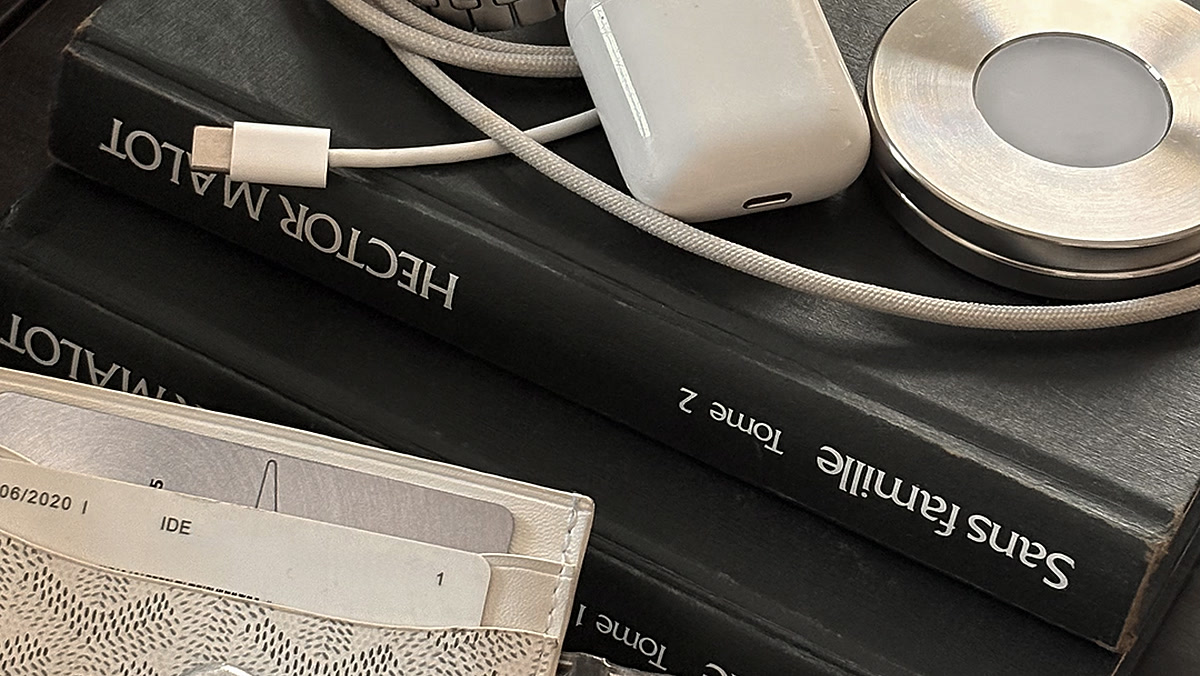
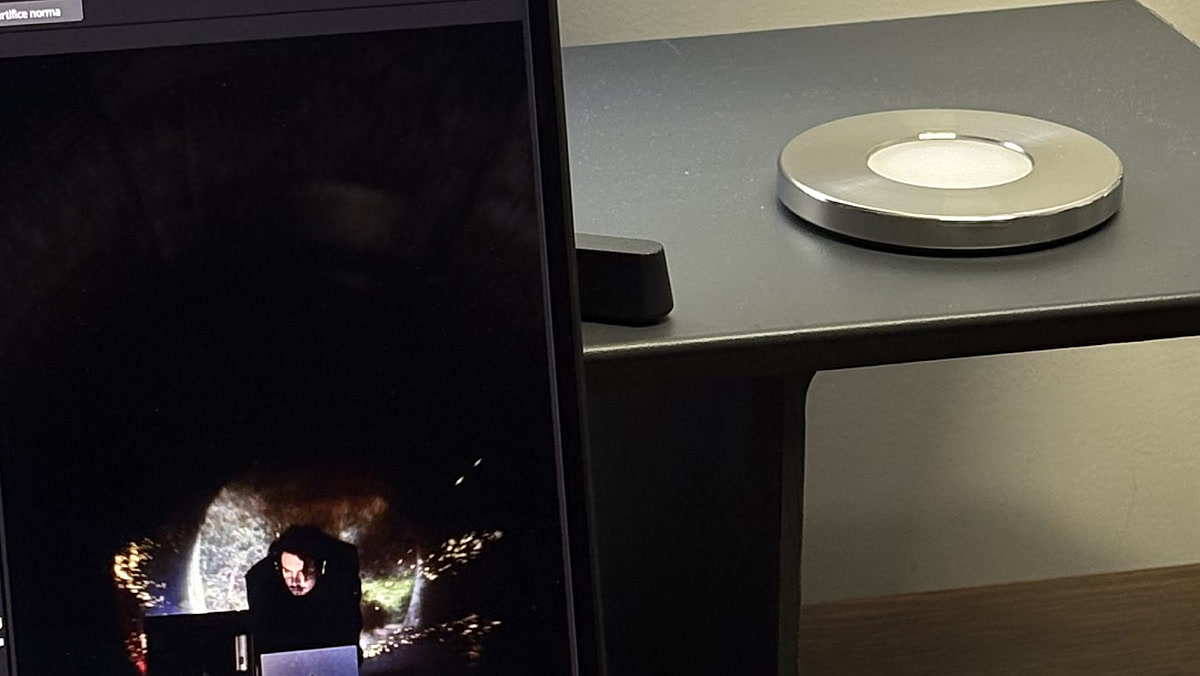
Když je slabinou to, že vypínač sedí na obrazovce, řešením je sundat ho z obrazovky. Na tom stojí Norma: disk z nerezové oceli, který zeskenuješ iPhonem, aby se zablokovaly aplikace, které sis vybral, a zeskenuješ znovu, aby se vrátily. Žádný kód, žádné „ignorovat“, žádný časovač, se kterým se dá dohadovat — blok se změní jen tehdy, když jsou disk a telefon ve stejné místnosti. Nech ho doma a blok drží. Jednorázový nákup a stejný sken zablokuje rozptylující stránky i na tvém Macu. Jak to vychází proti softwarovým blokátorům a čím začít, když jde o scrollování.
Časté otázky.
- Jak zablokuju aplikace na iPhonu?
- Jdi do Nastavení, klepni na Čas u obrazovky, klepni na Aktivita v aplikacích a na webových stránkách a zapni ji, pak klepni na Limity pro aplikace a Přidat limit. Vyber kategorii nebo jednotlivou aplikaci, nastav denní dobu a po jejím vyčerpání je aplikace zablokovaná. Pokud chceš rozvrh místo přídělu, použij ve stejné nabídce Klidový čas.
- Jak zamknu aplikaci na iPhonu?
- Podrž prst na ikoně aplikace na ploše, dokud se neotevře nabídka, a pak klepni na Požadovat Face ID (nebo Touch ID či přístupový kód). Aplikace si pak vyžádá ověření při každém otevření a zamkne se znovu, jakmile ji ukončíš. Kalkulačku, Fotoaparát, Hodiny, Kontakty, Najít, Mapy, Zkratky ani Nastavení takto zamknout nelze.
- Dá se aplikace na iPhonu zablokovat natrvalo?
- Vestavěnými nástroji ne. Nejblíž jsou Nastavení, Čas u obrazovky, Omezení obsahu a soukromí, Povolené aplikace a funkce, které předinstalovanou aplikaci odstraní z plochy, nebo smazání stažené aplikace úplně. Obojí dokáže za necelou minutu vrátit každý, kdo zná přístupový kód Času u obrazovky — a pokud sis ho nastavil sám pro sebe, jsi to ty.
- Jak omezit aplikace na iPhonu, aniž bych je smazal?
- Použij Limity pro aplikace na denní příděl, Klidový čas na rozvrh nebo Omezení obsahu a soukromí, abys předinstalovanou aplikaci skryl z plochy. Všechny tři nechají aplikaci i její data na místě a kterékoli z nich vrátíš zpátky v Nastavení.
- Proč mi iPhone dovolí limit pro aplikaci ignorovat?
- Protože takové je výchozí nastavení. Apple uvádí, že limity Času u obrazovky je po vyčerpání možné ignorovat, dokud si nenastavíš přístupový kód Času u obrazovky a nezapneš volbu V klidovém čase zablokovat. I potom je to kód, který sis vybral sám, a Obnova kódu Času u obrazovky ho dokáže resetovat přes tvůj účet Apple.
- Jak zablokovat rozptylující aplikace sobě, ne dítěti?
- Nástroje rodičovské kontroly předpokládají, že člověk, který limit nastavuje, a člověk, který s ním žije, jsou dva různí lidé. Když jde o téhož člověka, spolehlivější je dát vypínač někam, kam v tu chvíli tvoje ruka nedosáhne — naplánovaný klidový čas, kterého se nikdy nedotkneš, nebo fyzický předmět jako Norma, který se musí zeskenovat, než se cokoli změní.
Blokuj aplikace, ne impulz.
Zeskenuj ocelový disk a blok se zapne. Zeskenuj znovu, až to budeš myslet vážně.

Zdroje
- 1.Podpora Apple · „Začínáme s funkcí Čas u obrazovky na iPhonu“ (zapnutí funkce Aktivita v aplikacích a na webových stránkách)
- 2.Podpora Apple · „Nastavení rozvrhů pomocí funkce Čas u obrazovky na iPhonu“ (klidový čas, limity pro aplikace, V klidovém čase zablokovat)
- 3.Podpora Apple · „Zamknutí nebo skrytí aplikace na iPhonu“
- 4.Podpora Apple · „Blokování aplikací, stahování v aplikacích, webových stránek a nákupů na iPhonu“
- 5.Podpora Apple · „Vytvoření, správa a sledování přístupového kódu pro funkci Čas u obrazovky na iPhonu“
- 6.Podpora Apple · „Blokování hovorů a zpráv pomocí funkce Čas u obrazovky na iPhonu“
- 7.Podpora Apple · „Zabránění kontaktů na iPhonu v tom, aby s vámi komunikovali“
- 8.Podpora Apple · „Použití asistovaného přístupu k zamknutí iPhonu v jediné aplikaci“
- 9.Podpora Apple · „Nastavení režimu soustředění na iPhonu“