Þú stilltir takmarkanirnar á rólegu sunnudagskvöldi. Á miðvikudegi ertu farinn að banka beint í gegnum þær án þess að taka almennilega eftir því. Ekkert er bilað. Screen Time gerir nákvæmlega það sem því var ætlað — vandinn er fyrir hvern það var smíðað.
Leitaðu að screen time virkar ekki og flest svörin meðhöndla þetta sem bilun: samstillingarvandi, útgáfa sem þarf að uppfæra, stilling sem þú misstir af. Stundum er það sagan. Miklu oftar virka takmarkanirnar fullkomlega og þú einfaldlega gengur í gegnum þær, því eiginleikinn gerir hljóðlega ráð fyrir einhverju um aðstæður þínar sem er ekki satt.
Screen Time var smíðað fyrir heimili, ekki fyrir eina manneskju
Apple kynnti Screen Time með iOS 12 í júní 2018 og setti það í skýra ætt: foreldraeftirlitið sem iPhone hafði borið frá 2008, nú útvíkkað með virkniskýrslum og app-takmörkunum fyrir fullorðna sem vildu þær. Sú ætt sést enn. Núverandi stuðningssíður Apple um eiginleikann eru skrifaðar um það að stýra tæki barns, og síðan um aðgangskóðann byrjar á að útskýra að kóðinn sé það sem heldur þeim stillingum sem þú velur fyrir tæki barns á sínum stað.
Sú hönnun virkar. Foreldri stillir takmörkunina úr eigin síma, barnið mætir henni í sínum, og hindrunin heldur því sá sem vill fara yfir hana getur ekki opnað hana. Taktu nú seinni manneskjuna í burtu. Þú stillir takmörkunina, þú heldur á kóðanum, og það ert þú sem stendur fyrir framan hana klukkan ellefu að kvöldi. Lásinn er í lagi. Það er bara enginn hinum megin við hann.
Staðirnir fimm þar sem sjálfsettar takmarkanir leka
Ekkert af þessu eru brellur eða smugur. Þetta er skjalfest, ætluð hegðun eiginleikans, sem er einmitt ástæðan fyrir því hversu áhrifaríkt hún leysir þig upp.
- Takmörkun er tillaga þangað til þú segir henni að vera það ekki. Apple gefur ekki út iPhone User Guide á íslensku, og enski textinn segir það hreint út: „By default, Screen Time limits can be ignored once reached.“ Þú nærð takmörkuninni, skjár býðst til að framlengja hana eða leggja hana til hliðar út daginn, og það er eitt bank. Enginn kóði, engin mótstaða, engin skráning.
- Þú heldur á kóðanum. Að setja hann er lausnin sem allir grípa til, og hún bætir vissulega við einu skrefi. En kóði sem þú valdir er kóði sem þú kannt. Rólega útgáfan af þér velur hann; þreytta útgáfan slær hann inn. Leyndin er allur mekanisminn, og fyrir þér er hún engin leynd.
- Skammturinn fyllist aftur. App Limits eru dagleg fjárhagsáætlun, svo teljarinn byrjar upp á nýtt hvern morgun. Ekkert flyst yfir og að fara fram úr kostar þig ekkert á morgun, svo engin afleiðing safnast nokkurn tímann upp til að standa á móti næstu höfnun.
- Boðin halda áfram að berast. Takmörkun stýrir tímanum sem þú eyðir inni í forriti, ekki því hversu oft forritið kallar á þig. Merki, borðar og einnar línu forskoðanir halda áfram að lenda, hvert um sig ný hvatning til að opna nákvæmlega það sem þú ákvaðst að nota minna.
- Að eyða forritinu er minni fyrirhöfn en það virðist. Þetta er klassíska sjálfsetta lausnin og hún kaupir þér raunverulega einn dag. Svo viltu það aftur, og að setja það upp á ný tekur fimmtán sekúndur og eitt augnatillit. Sérhver hindrun sem þú getur afturkallað hraðar en þú sýður vatn er hraðahindrun.
Aðalatriðin
- Screen Time óx út úr foreldraeftirliti: það heldur þegar einhver annar geymir kóðann og lekur þegar þú geymir hann sjálfur.
- Samkvæmt sjálfgefnu stillingunni hjá Apple má hunsa app-takmörkun um leið og þú nærð henni — enginn kóði nauðsynlegur.
- Takmarkanir eru daglegur skammtur, svo það kostar ekkert á morgun að fara fram úr í dag.
- Takmörkun stýrir tímanum inni í forriti, ekki tilkynningunum sem halda áfram að bjóða þér aftur inn.
- Sérhver hindrun virkar nákvæmlega jafn vel og hún er erfið að afturkalla — sem er það eina sem stilling í tækinu sjálfu getur aldrei lagað.
Mynstrið undir öllum fimm
Það sem þú ert í raun að reyna að byggja er það sem hegðunarvísindamenn kalla skuldbindingartæki: ákvörðun sem þú læsir á meðan þú ert rólegur svo framtíðar-þú, freistað, geti ekki auðveldlega afturkallað hana. Styrkur hennar hvílir á einni breytu — hversu erfitt er að afturkalla hana á augnabliki freistingarinnar. Hver einasta bilun hér að ofan er sama bilunin með annan hatt: hindrunin og sá sem fer yfir hana eru eitt og sama sjálfið, aðskilin af nokkrum klukkustundum og skapi.
Þetta er ekki Apple-vandamál. Yfirlitsgrein frá 2019 eftir Lyngs og félaga skráði 367 forrit og vafraviðbætur smíðuð fyrir stafræna sjálfstjórn og vörpuðu þeim á tvíkerfalíkan sjálfstjórnunar. Þau þyrpast um fáein úrræði — lokun, tímamæla, markmið, sjálfsmælingu — og þau sem reiða sig mest á að þú yfirvinnir hvöt á staðnum biðja mest um veikasta hluta kerfisins. Skjátíminn þinn var aldrei í raun viljastyrksvandamál.
Prófið sem segir allt fyrir
Taktu tímann á því hversu langan tíma tekur að afturkalla hindrunina. Tvö bönk og kóði sem þú kannt nú þegar eru um fjórar sekúndur. Að ganga inn í annað herbergi eru níutíu. Sú tala, ekki styrkur áforma þinna, ræður því hvort takmörkun lifir af slæmt kvöld.
Hvað virkar í raun
Öll fjögur eru ókeypis, og þeim er raðað eftir því eina sem skiptir máli: hversu erfitt er að afturkalla þau.
- Gefðu einhverjum öðrum kóðann. Maka, sambýlingi, samstarfsmanni. Þetta endurreisir fyrirkomulagið sem Screen Time var hannað í kringum — ein manneskja setur takmörkunina, önnur heldur á lyklinum — og það er eina breytingin sem lætur eiginleikann haga sér eins og þú gerðir ráð fyrir. Það líður örlítið hlægilega í um viku, og það virkar.
- Kveiktu á lokun, ekki bara takmörkun. Um leið og Screen Time aðgangskóði er til staðar bjóða Settings upp á að loka á forrit meðan á Downtime stendur í stað þess að minna þig aðeins á það (Settings → Screen Time → Downtime → Block at Downtime). Apple segir það skýrt: með valkostinn slökktan sérðu áminningu og getur haldið áfram að nota forritin. Að kveikja á honum er munurinn á takmörkun og takmörkun sem stöðvar þig.
- Fjarlægðu inngönguleiðina, ekki mínúturnar. Týndar klukkustundir byrja sjaldan á ákvörðun um að skrolla. Þær byrja á því að þú aflæsir símanum fyrir eitthvað annað og lendir í straumi. Skráðu þig út af reikningnum, taktu forritið af Home Screen og úr leit, eða taktu það alveg úr símanum. Þú ert ekki að skammta tímann, þú ert að rjúfa viðbragðið sem eyðir honum. Meira um venjurnar sem borgar sig að breyta fyrst.
- Notaðu fjarlægð, því ekki er hægt að banka á fjarlægð. Hlaðið símann í eldhúsinu. Settu hann í skúffu á meðan vinnulotan stendur. Fjarlægð er eina mótstaðan hér sem veik stund getur ekki leyst upp á augabragði, sem er einmitt ástæðan fyrir því að hún er áreiðanlegust.
Óþægilega samantektin er sú að vitundin var aldrei það sem vantaði. Þú veist nokkurn veginn hversu margar klukkustundir fóru í strauminn í síðustu viku, og að vita það breytti engu. Það sem vantar er hindrun sem er ekki í höndum þess sem vill losna við hana.
Þegar rofinn er ekki í símanum
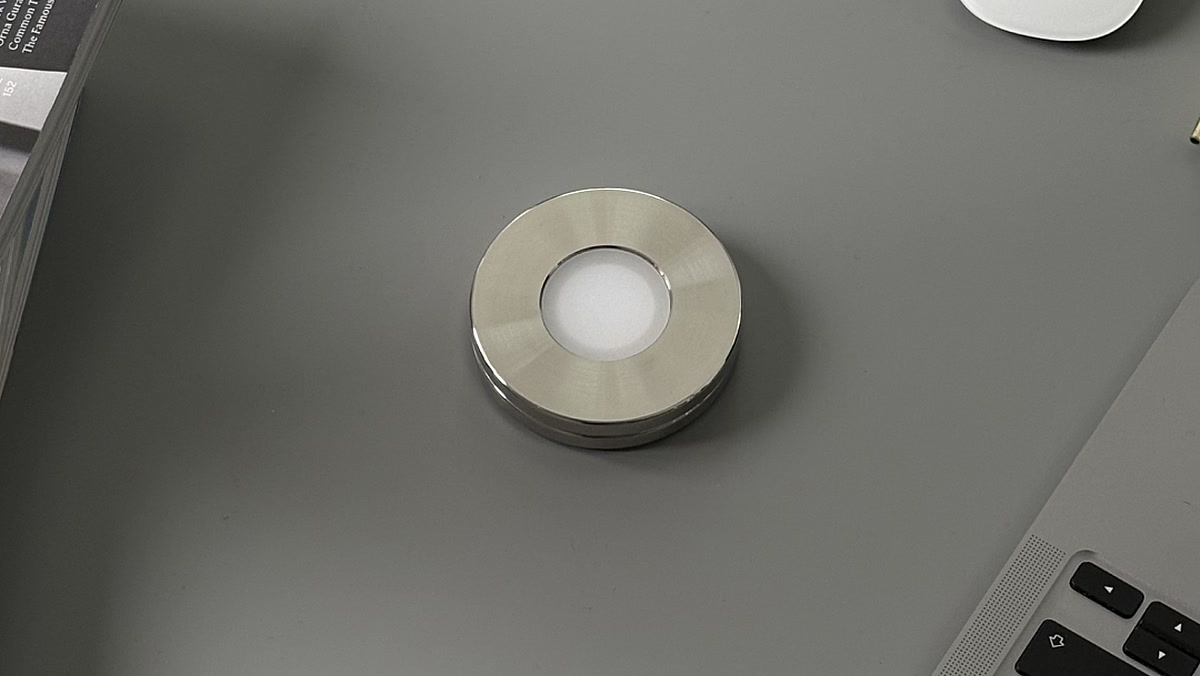
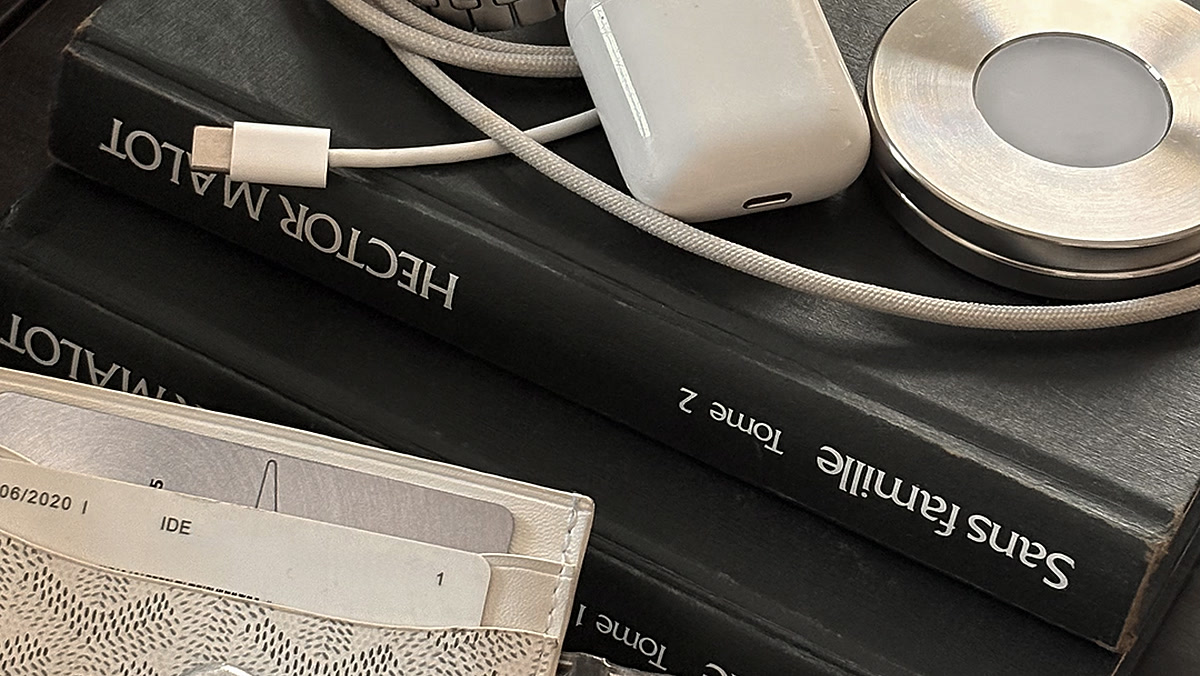
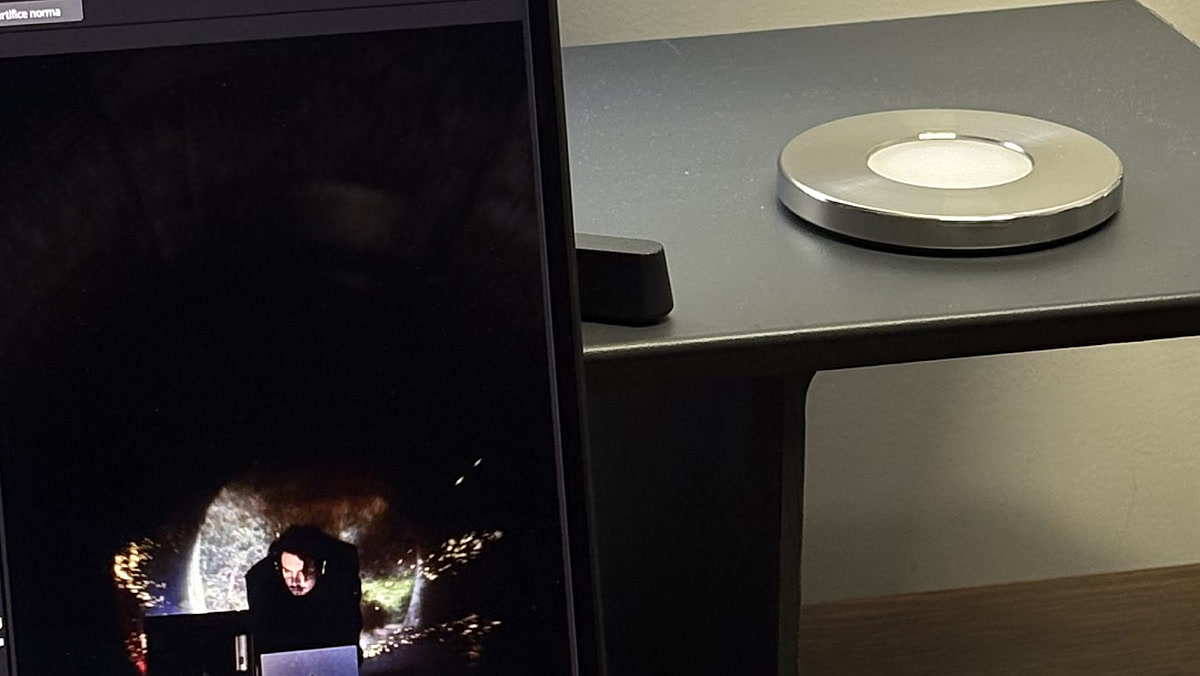
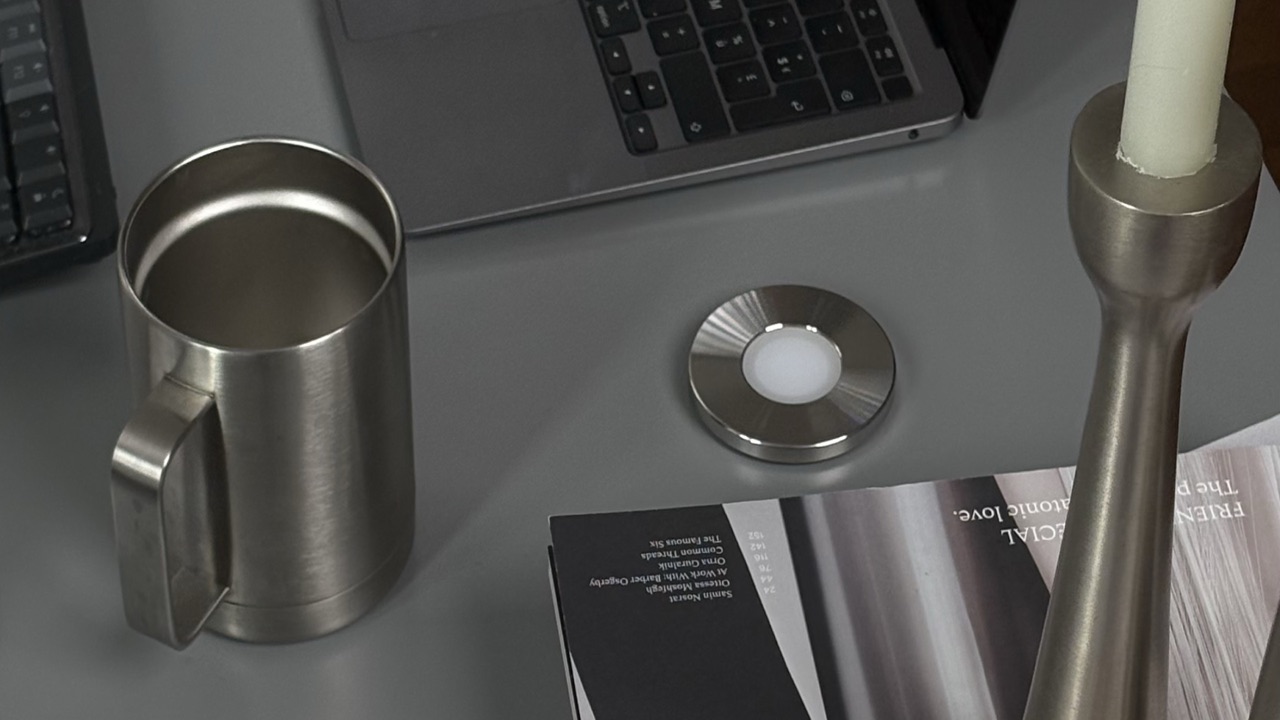
Norma er byggð í kringum þessa takmörkun. Þetta er skífa úr ryðfríu stáli með óvirku NFC-merki. Þú velur forritin þín einu sinni, skannar skífuna með iPhone-inum til að kveikja á lokuninni, og þau forrit haldast horfin þangað til þú skannar skífuna aftur með höndunum — enginn kóði, enginn tímamælir til að framlengja, enginn skjár til að ýta frá. Skildu skífuna eftir heima og lokunin heldur, því eina leiðin til að aflétta henni er að fara og sækja hana. Þetta eru stök kaup frekar en áskrift, og sama skönnun lokar á truflandi vefsíður á Mac. Hér er samanburðurinn við hugbúnaðarlokarana, lið fyrir lið.
Settu slökkvarann utan seilingar.
Skannaðu stálskífu og forritin sem þú valdir eru horfin, þar til þú skannar hana aftur.
Algengar spurningar.
- Af hverju virkar Screen Time ekki í iPhone-inum mínum?
- Stundum er um raunverulega bilun að ræða: Screen Time getur hætt að samstillast milli tækja, og venjulega lagfæringin er að uppfæra öll tæki og slökkva og kveikja aftur á Share Across Devices. Miklu oftar er ekkert bilað. Takmarkanirnar virka og þeim er ýtt frá, því sjálfgefið má hunsa takmörkun um leið og þú nærð henni, og því þú heldur á kóðanum sem hefði stöðvað þig.
- Af hverju stöðva Screen Time takmarkanir mig ekki?
- Því takmörkun og lokun eru sitt hvor hluturinn. Nema þú setjir Screen Time aðgangskóða og kveikir á lokunarvalkostinum framkallar takmörkun skjá sem þú getur ýtt frá og haldið áfram. Enska iPhone User Guide, eina útgáfan sem Apple gefur út fyrir Ísland, segir það hreint út: sjálfgefið má hunsa Screen Time takmarkanir um leið og þeim er náð.
- Af hverju hunsa ég stöðugt mínar eigin app-takmarkanir?
- Því sá sem setti takmörkunina og sá sem mætir henni er sama manneskjan í ólíku ástandi. Þú setur hana rólegur og úthvíldur; þú mætir henni þreyttur, leiður eða stressaður, þegar það kostar eitt bank að ýta henni frá og umbunin kemur strax. Þetta er ekki skapgerðarbrestur, þetta er ójafn leikur sem þú hannaðir sjálfur inn í fyrirkomulagið.
- Núllstillast Screen Time takmarkanir á hverjum degi?
- App Limits eru daglegur skammtur, svo teljarinn byrjar upp á nýtt á hverjum degi. Það er gagnlegt til að dreifa tímanum og gagnslaust sem afleiðing: að fara fram úr í dag breytir engu um morgundaginn, svo enginn kostnaður safnast upp sem stendur á móti þér.
- Ég gleymdi Screen Time aðgangskóðanum mínum — hvað nú?
- Apple lýsir endurstillingunni: í Settings, undir Screen Time, velurðu Change Screen Time Passcode og slærð inn netfangið og lykilorðið fyrir Apple Account sem þú notaðir þegar þú settir upp Screen Time Passcode Recovery. Fyrir tæki barns sem stýrt er gegnum Family Sharing endurstillir skipuleggjandi fjölskyldunnar hann úr sínu eigin tæki. Vert að taka eftir: ef þú settir þann kóða til að halda aftur af sjálfum þér er endurstillingarleiðin líka leiðin sem þreytta útgáfan af þér mun fara.
- Er hægt að læsa Screen Time svo ég geti ekki breytt því sjálfur?
- Í raun ekki, og það hjálpar að vera hreinskilinn um hvers vegna. Sérhver lás í tækinu opnast með einhverju sem þú hefur — Screen Time aðgangskóðanum, eða lykilorðinu að Apple Account sem endurstillir hann. Leiðirnar tvær sem halda raunverulega eru að gefa öðrum manneskju kóðann, eða að færa rofann alveg út úr tækinu svo ekkert sé eftir í símanum til að aflæsa.
Heimildir
- 1.Apple · iPhone User Guide, „Set schedules with Screen Time on iPhone“ (sjálfgefið má hunsa takmarkanir um leið og þeim er náð; Block at Downtime)
- 2.Apple Support · „Use Screen Time to manage your child’s iPhone or iPad“
- 3.Apple Support · „Use parental controls to manage your child’s iPhone or iPad“
- 4.Apple Support · „If you forgot the Screen Time passcode for an iPhone or iPad“
- 5.Apple Newsroom · „iOS 12 introduces new features to reduce interruptions and manage Screen Time“ (júní 2018)
- 6.Lyngs o.fl. · „Self-Control in Cyberspace: Applying Dual Systems Theory to a Review of Digital Self-Control Tools“, CHI 2019 (yfirlit yfir 367 verkfæri)