Screen Time limits usually fail for a structural reason: the feature grew out of parental controls, where one person sets the limit and someone else runs into it. When you set your own limits and hold your own passcode, every limit is one tap from being ignored, and by default Apple lets you do exactly that.
Search for screen time not working and most of the answers treat it as a fault: a sync problem, a version to update, a setting you missed. Occasionally that is the story. Far more often the limits are firing correctly and you are walking through them, because the feature assumes something about your situation that is not true.
Screen Time was built for a household, not for one person alone
Apple announced Screen Time with iOS 12 in June 2018 and placed it in a clear lineage: the parental controls the iPhone had carried since 2008, now extended with activity reports and app limits for adults who wanted them. That lineage still shows. Apple’s current support pages for the feature are written around managing a child’s device, and the passcode page opens by explaining that the passcode is what keeps the settings you choose for a child’s device in place.
That design works. A parent sets the limit from their own phone, the child meets it on theirs, and the barrier holds because the person who wants to cross it cannot open it. Now take the second person away. You set the limit, you hold the passcode, and you are the one standing in front of it at eleven at night. The lock works as designed, but the person it was meant to stop now holds the key.
The five places self-imposed limits leak
None of these are tricks or exploits. Each one is documented, intended behaviour of the feature.
- A limit is a suggestion until you tell it not to be. Apple’s own iPhone User Guide is blunt about it: “By default, Screen Time limits can be ignored once reached.” You hit the limit, a screen offers to extend it or set it aside for the day, and that is one tap, with no passcode and no record.
- You hold the passcode. Setting one is the fix everybody reaches for, and it does add a step. But a code you chose is a code you know. You pick it while calm and type it in while tired. A passcode works by being secret, and it is not secret from you.
- The allowance refills. App limits are a daily budget, so the counter starts again each morning. Nothing carries forward and going over costs you nothing tomorrow, so no consequence ever builds up to push back against the next dismissal.
- The invitations keep arriving. A limit governs the time you spend inside an app, not how often the app asks for you. Badges, banners and one-line previews keep landing, each one a fresh prompt to open the exact thing you decided to use less.
- Deleting the app is less friction than it feels. It is the classic self-imposed fix and it buys you a day. Then you want it back, and reinstalling takes fifteen seconds and a glance at your face. A barrier you can undo faster than a kettle boils only slows you down.
Key takeaways
- Screen Time grew out of parental controls: it holds when someone else keeps the passcode, and leaks when you keep it yourself.
- By Apple’s own default, an app limit can be ignored the moment you reach it, no passcode required.
- Limits are a daily allowance, so overshooting today costs nothing tomorrow.
- A limit governs time inside an app, not the notifications that keep inviting you back in.
- A barrier is only as strong as it is hard to reverse, and a setting on the same device is always easy to reverse.
The pattern underneath all five
What you are trying to build is what behavioural scientists call a commitment device: a decision you lock in while calm so your future, tempted self cannot easily undo it. Its strength rests on one variable: how hard it is to reverse in the moment of temptation. Each failure above has the same cause: the person who sets the barrier and the person crossing it are the same, a few hours and a mood apart.
The pattern is not specific to Apple. A 2019 review by Lyngs and colleagues catalogued 367 apps and browser extensions built for digital self-control and mapped them onto a dual-systems model of self-regulation. They cluster on a small set of mechanisms (blocking, timers, goals, self-tracking), and the ones leaning hardest on you overriding an impulse in the moment ask the most of the weakest part of the system. Your screen time was never a willpower problem.
A quick test
Time how long it takes to undo the barrier. Two taps and a code you already know is about four seconds. Walking to another room is ninety. That number decides whether a limit survives a bad evening, more than the strength of your intentions does.
What works instead
All four of these are free, and they are ordered by how hard they are to reverse.
- Give the passcode to somebody else. A partner, a flatmate, a colleague. This restores the arrangement Screen Time was designed around (one person sets the limit, a different person holds the key), and it is the single change that makes the feature behave the way you assumed it would. It feels faintly ridiculous for about a week, and it works.
- Turn on blocking, not just limiting. Once a Screen Time passcode exists, Settings gains an option to block apps during downtime rather than only reminding you about it. Apple is explicit that with the option off you see a reminder and can carry on using the app. With it on, the limit stops you.
- Remove the entry point, not the minutes. Lost hours rarely begin with a decision to scroll. They begin with an unlock for something else that lands you in a feed. Log out of the account, take the app off the home screen and out of search, or take it off the phone entirely. The aim is to break the reflex that spends the time, rather than to budget it. More on the habits worth changing first.
- Use distance. Charge the phone in the kitchen. Put it in a drawer for the work block. Distance is the only friction here that a weak moment cannot undo with a tap, which is why it is the most reliable.
Knowing the numbers was never what was missing. You already know roughly how many hours went into the feed last week, and knowing it changed nothing. What is missing is a barrier that is not controlled by the person who wants it gone.
When the switch is not on the phone
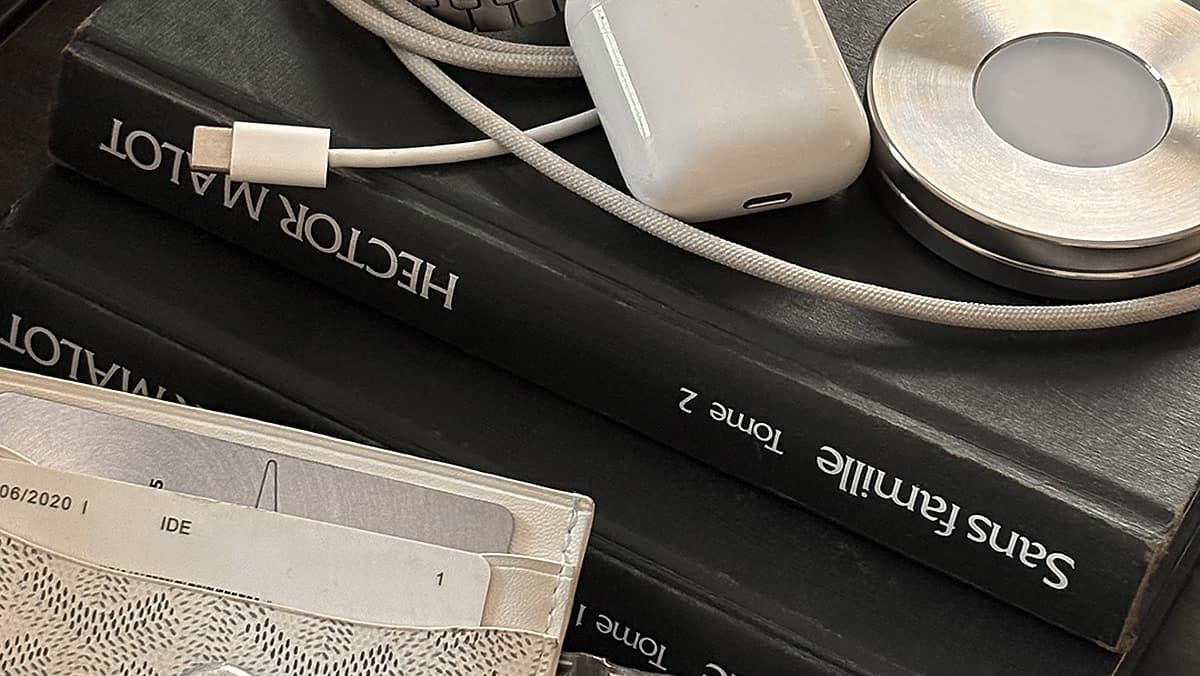
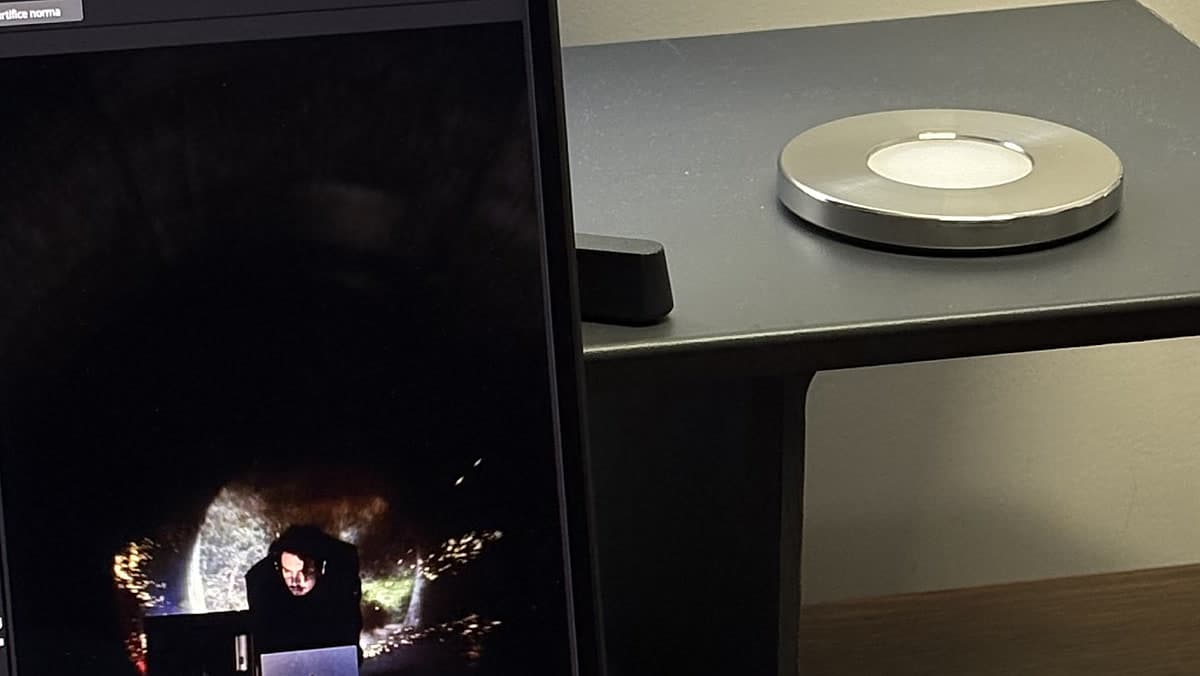
That constraint is what Norma is built around. It is a stainless-steel disc holding a passive NFC tag. You choose your apps once, scan the disc with your iPhone to switch the block on, and those apps stay gone until you physically scan the disc again. No passcode, no timer to extend, no screen to dismiss. Leave the disc at home and the block holds, because the only way to lift it is to go and get it. It is a one-time purchase rather than a subscription, and with the free Mac app the same scan blocks distracting sites on a Mac. How that compares with the software blockers, point by point.
Put the off switch out of reach.
Scan a steel disc and the apps you chose stay blocked until you scan it again.

Common questions.
- Why is Screen Time not working on my iPhone?
- Sometimes it is a real fault: Screen Time can stop syncing across devices, and updating every device and toggling Share Across Devices is the usual fix. Far more often nothing is broken. The limits are firing and being dismissed, because by default a limit can be ignored once you reach it, and because you hold the passcode that would have stopped you.
- Why don’t Screen Time limits stop me?
- Because a limit and a block are different things. Unless you set a Screen Time passcode and turn on the blocking option, hitting a limit produces a screen you can dismiss and carry on. Apple’s iPhone User Guide states it plainly: by default, Screen Time limits can be ignored once reached.
- Why do I keep ignoring my own app limits?
- Because the person who set the limit and the person meeting it are the same person in different states. You set it calm and rested; you meet it tired, bored or stressed, when the effort to dismiss it is one tap and the reward is immediate. The setup puts you at a disadvantage, whatever your character.
- Do Screen Time limits reset every day?
- App Limits are a daily allowance, so the counter starts over each day. That is useful for pacing and useless as a consequence: going over today changes nothing about tomorrow, so there is no accumulating cost pushing back against you.
- I forgot my Screen Time passcode. What now?
- Apple documents the reset: in Settings, under Screen Time, choose to change the Screen Time passcode and enter the Apple Account email and password you used when you set up Screen Time Passcode Recovery. For a child’s device managed through Family Sharing, the family organiser resets it from their own device. Worth noticing: if you set that passcode to restrain yourself, the reset path is also the path your tired self will take.
- Is there a way to lock Screen Time so I can’t change it myself?
- Not really. Every lock on the device is opened by something you have: the Screen Time passcode, or the Apple Account password that resets it. The two approaches that hold are giving the passcode to another person, or moving the switch off the device entirely so there is nothing on the phone left to unlock.
Sources
- 1.Apple · iPhone User Guide, “Set schedules with Screen Time” (by default, limits can be ignored once reached; Block at Downtime)
- 2.Apple Support · “Use Screen Time to manage your child’s iPhone or iPad”
- 3.Apple Support · “Use parental controls to manage your child’s iPhone or iPad”
- 4.Apple Support · “If you forgot the Screen Time passcode for an iPhone or iPad”
- 5.Apple Newsroom · “iOS 12 introduces new features to reduce interruptions and manage Screen Time” (June 2018)
- 6.Lyngs et al. · “Self-Control in Cyberspace: Applying Dual Systems Theory to a Review of Digital Self-Control Tools,” CHI 2019 (review of 367 tools)